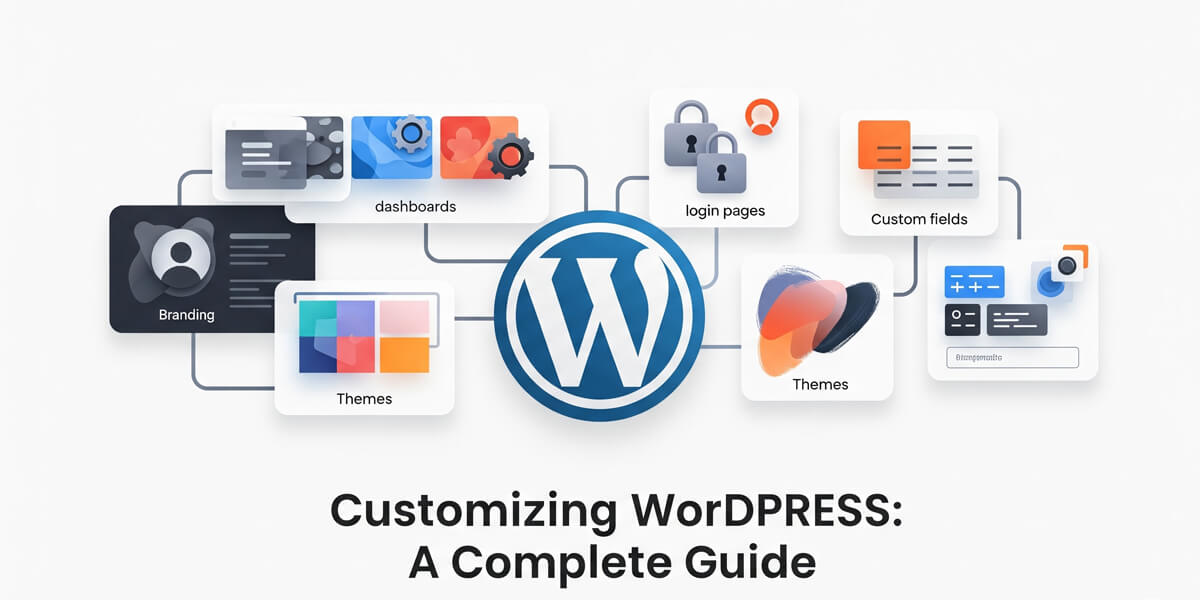
Welcome to Customizing WordPress: A Complete Guide! In 2025, WordPress powers over 40% of all websites, from personal blogs to major business platforms. Its greatest strength? The ability to customize every aspect to fit your unique needs and vision. Whether you’re a blogger seeking a distinctive look, a business owner aiming for a branded experience, or a developer building advanced solutions, mastering WordPress customization is essential.
This comprehensive guide will walk you through the latest and most effective ways to personalize your WordPress site. We’ll cover everything—from transforming the dashboard and login page to creating custom themes, fields, and layouts. You’ll learn how to use powerful tools like the Customizer API and Advanced Custom Fields, leverage plugins for advanced features, and understand the theme hierarchy for precise control.
By the end, you’ll have actionable strategies and expert insights to make your WordPress site not just functional, but truly exceptional. Let’s dive in and unlock the full potential of WordPress customization in 2025!
Table of Contents
Open Table of Contents
- Why Customize WordPress in 2025?
- 1. Customizing the WordPress Dashboard
- 2. Personalizing the Login Page
- 3. Using the WordPress Customizer API
- 4. Exploring Advanced Custom Fields (ACF)
- 5. Mastering Theme Hierarchy
- 6. Additional Customization Tips
- 7. Tools for Customization
- 8. 2025 Customization Checklist
- 9. Customization & Site Success
- Final Thoughts
Why Customize WordPress in 2025?
Customization is key to making your WordPress site stand out in 2025. It’s not just about aesthetics; it’s about functionality, user experience, and branding. Customizing WordPress in 2025 is essential for creating a unique, user-friendly site. It enhances your brand, improves user experience, and boosts functionality. Here’s why you should customize:
- Branding: Reflect your style or business identity.
- User Experience: Tailor navigation, dashboards for ease.
- Functionality: Add unique features via custom fields.
- SEO & Engagement: Unique, fast sites boost rankings and retention.
- Flexibility: Adapt to any niche or audience.
Stat Alert: 70% of WordPress users customize themes or dashboards for better UX, per 2024 WP Tavern data. Shine in 2025!
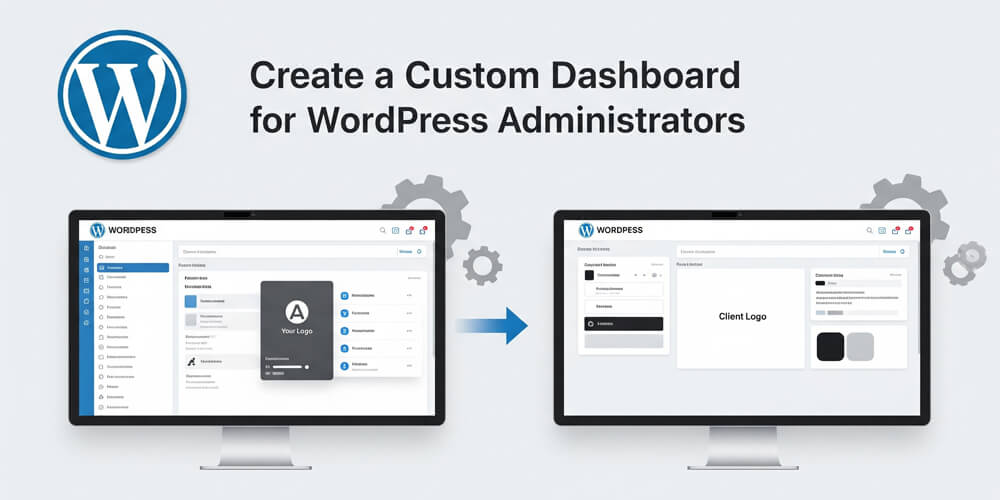
1. Customizing the WordPress Dashboard
The WordPress dashboard is your command center—where you manage content, monitor performance, and control your site’s functionality. By default, it’s generic and cluttered with widgets you might not need. Customizing it transforms your workflow, improves efficiency, and creates a professional environment tailored to your specific needs. Whether you’re managing multiple client sites or streamlining your personal blog, a personalized dashboard saves time and enhances productivity.
1.1 Why Tweak It?
- Efficiency: Streamline tasks for you or clients.
- Branding: Add logos, custom colors.
- Simplicity: Hide clutter for beginners.
1.2 How to Customize
- Plugins: Use “Adminimize” or “White Label CMS” to hide widgets, add branding.
- Code:
- Add to
functions.phpin your theme:add_action('wp_dashboard_setup', 'my_custom_dashboard'); function my_custom_dashboard() { remove_meta_box('dashboard_quick_press', 'dashboard', 'side'); wp_add_dashboard_widget('my_widget', 'Welcome to 2025', 'my_widget_content'); } function my_widget_content() { echo '<p>Welcome to your custom dashboard! Manage your site with ease.</p>'; } - Hide menus: Use
remove_menu_page('edit.php');for posts, etc.
- Add to
- Result: A clean, branded dashboard.
- Guide: See Create a Custom WordPress Dashboard for step-by-step help.
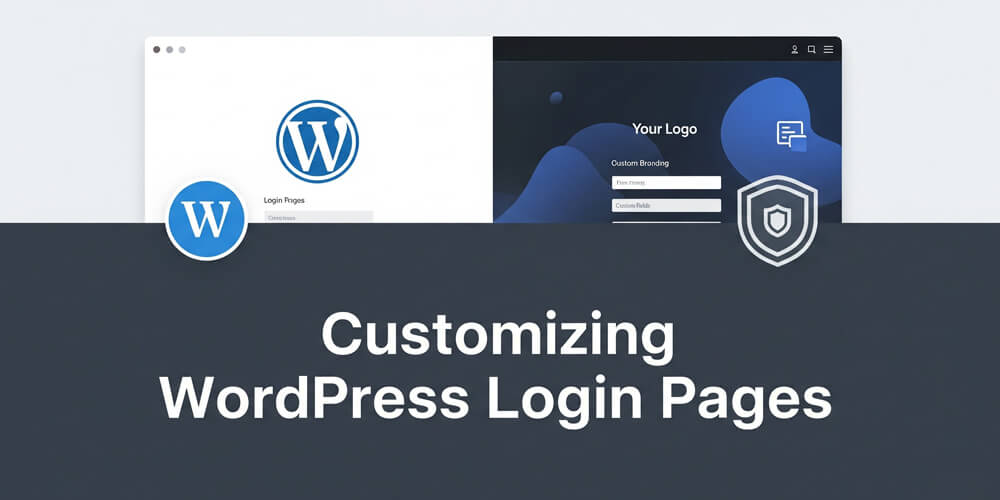
2. Personalizing the Login Page
Your WordPress login page is often the first touchpoint for users, clients, or team members accessing your site. The default login screen looks generic and unmemorable, but with customization, you can transform it into a branded experience that reflects your site’s identity. A personalized login page not only enhances professionalism but also reinforces brand recognition every time someone logs in.
2.1 Benefits
- Branding: Add your logo, colors.
- Security: Pair with a custom URL for safety.
- Professionalism: Impress clients or users.
2.2 Customization Steps
- Plugins: Try “Custom Login Page Customizer” or “LoginPress”.
- Code:
- Add to
functions.php:add_action('login_enqueue_scripts', 'my_login_style'); function my_login_style() { ?> <style> .login h1 a { background-image: url('<?php echo get_stylesheet_directory_uri(); ?>/logo.png'); width: 200px; height: 100px; background-size: contain; } .login { background: #f0f0f0; } .login form { border: 2px solid #0073aa; } </style> <?php } - Upload
logo.pngto your theme folder.
- Add to
- Extra: Change URL for security—see Change WordPress Login URL for Better Security.
- Resource: Dive into Customize WordPress Login for full tips.
Pro Tip: Test on mobile—ensure your login looks great everywhere!
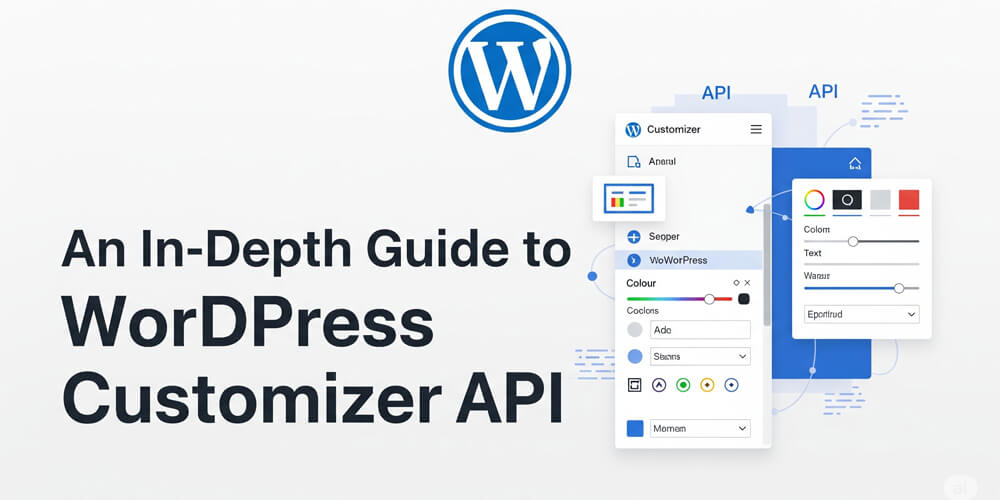
3. Using the WordPress Customizer API
The WordPress Customizer API is a powerful built-in tool that revolutionizes how you and your users interact with theme settings. It provides a real-time, live preview interface where changes are instantly visible, eliminating guesswork and streamlining the customization process. Whether you’re adjusting colors, layouts, or adding custom controls, the Customizer API offers an intuitive way to personalize your WordPress site without touching code, making it accessible to users of all skill levels.
3.1 Why Use It?
- Live Preview: See changes instantly.
- Flexibility: Adjust colors, menus, widgets.
- User-Friendly: No coding for basic tweaks.
3.2 How to Implement
- Access: Dashboard > Appearance > Customize.
- Basics: Edit site title, colors, menus.
- Code (for devs):
- Add to
functions.php:add_action('customize_register', 'my_customizer_settings'); function my_customizer_settings($wp_customize) { $wp_customize->add_section('my_section', array( 'title' => 'My 2025 Settings', 'priority' => 30, )); $wp_customize->add_setting('my_color', array( 'default' => '#0073aa', 'sanitize_callback' => 'sanitize_hex_color', )); $wp_customize->add_control(new WP_Customize_Color_Control( $wp_customize, 'my_color', array( 'label' => 'Accent Color', 'section' => 'my_section', ) )); } - Use:
echo get_theme_mod('my_color');in templates.
- Add to
- Result: Custom color picker for users.
- Guide: Check WordPress Customizer API Guide for advanced options.
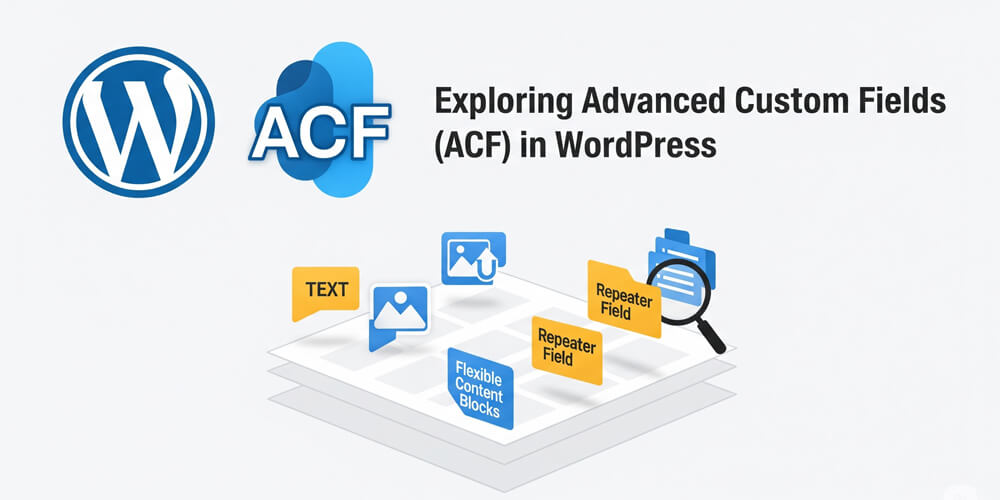
4. Exploring Advanced Custom Fields (ACF)
Advanced Custom Fields (ACF) revolutionizes how you handle content in WordPress by allowing you to add custom data fields beyond the standard title, content, and excerpt. Whether you’re building a real estate site that needs property details, an event calendar requiring dates and locations, or a portfolio showcasing project specifications, ACF provides the flexibility to create tailored content structures. Instead of cramming everything into the main content editor or relying on complex shortcodes, you can create clean, organized fields that make content management intuitive for you and your clients. This powerful tool transforms WordPress from a basic blogging platform into a robust content management system capable of handling any type of website.
4.1 Why ACF?
- Flexibility: Add text, images, or custom data.
- Use Cases: Event dates, product specs, author bios.
- Power: Build complex layouts easily.
4.2 Using ACF
- Plugin: Install “Advanced Custom Fields” (free or pro).
- Steps:
- Create a field group (e.g., “Event Info”).
- Add fields: text (date), image, etc.
- Assign to posts or pages.
- Display in theme:
<?php
$event_date = get_field('event_date');
if ($event_date) {
  echo '<p>Event Date: ' . $event_date . '</p>';
}
?>
- Benefit: Tailored content, no mess.
- Deep Dive: See Exploring WordPress Advanced Custom Fields for pro tips.
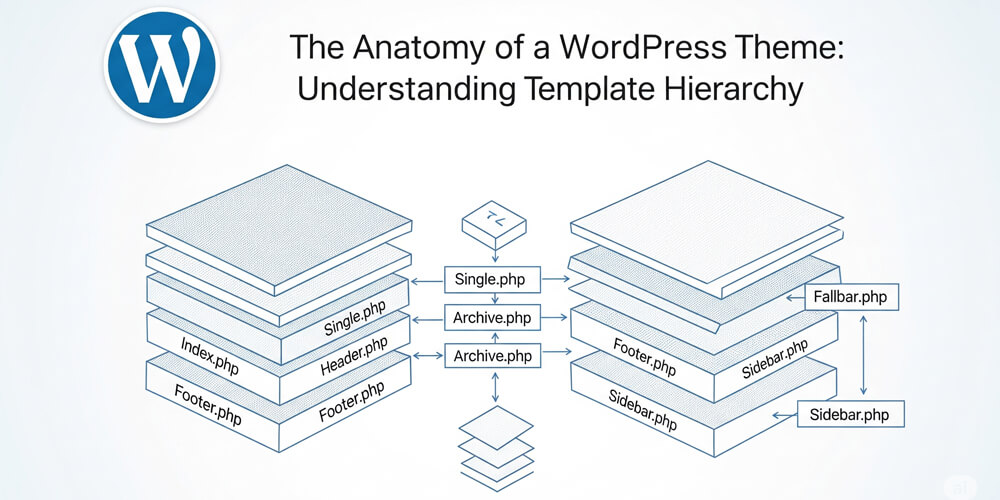
5. Mastering Theme Hierarchy
WordPress theme hierarchy is the backbone of your site’s structure, determining which template files are loaded for different types of content. Understanding this system is crucial for effective customization because it gives you precise control over how your site displays posts, pages, archives, and custom content types. Whether you want to create a unique layout for your blog posts, design a special template for your services page, or customize how your category archives appear, mastering theme hierarchy ensures your changes appear exactly where and when you want them. This knowledge transforms you from someone who makes random tweaks to a strategic customizer who can craft purposeful, targeted designs.
5.1 What Is It?
- Definition: Rules for which template files display content (e.g.,
single.php,page.php). - Why: Control layouts for posts, pages, categories.
5.2 Key Files
- index.php: Fallback for everything.
- single.php: Single posts.
- page.php: Static pages.
- category.php: Category archives.
- Custom: Create
page-about.phpfor “About” page.
5.3 Customize
- Child Theme:
- Create
wp-content/themes/your-child-theme. - Add
style.css:/* Theme Name: My Child Theme Template: parent-theme */ - Tweak templates (e.g., copy
single.php, edit).
- Create
- Result: Safe, unique layouts.
- Resource: Learn more at WordPress Theme Hierarchy.
Caution: Never edit parent theme files—updates wipe changes!
6. Additional Customization Tips
Beyond the core customization techniques we’ve covered, there are numerous additional ways to enhance your WordPress site in 2025. These supplementary customization options help you fine-tune every aspect of your site’s appearance and functionality. From managing widgets and menus to implementing custom CSS and leveraging powerful plugins, these tools give you granular control over your site’s design and user experience. Whether you’re looking to add interactive elements, improve navigation, or create unique visual effects, these additional customization methods will help you achieve a truly personalized WordPress site that stands out from the crowd.
6.1 Widgets & Menus
- Widgets: Add to sidebars, footers via Dashboard > Appearance > Widgets.
- Menus: Create custom navigation in Appearance > Menus.
- Tip: Add a “Shop Now” menu for eCommerce.
6.2 CSS & Design
- Add CSS: Use Customizer > Additional CSS:
.site-header { background: #0073aa; color: white; } - Link: Pair with Dark Mode Switch CSS for style.
6.3 Plugins
- Elementor: Drag-and-drop page builder.
- Custom Post Types UI: Add new content types (e.g., portfolio).
7. Tools for Customization
Here are some essential and emerging tools for WordPress customization in 2025:
- Full Site Editing (FSE): Native in WordPress, FSE lets you visually edit headers, footers, and templates site-wide using blocks—no PHP required. Perfect for rapid prototyping and design consistency.
- WPCode (formerly Insert Headers and Footers): Easily add custom code snippets (JS, CSS, PHP) to your site without editing theme files, ensuring safe and update-proof customizations.
- WPForms: Build custom forms with drag-and-drop simplicity—great for contact, surveys, or lead generation.
- Customizer Export/Import: Save and migrate your Customizer settings between sites for efficient theme development.
- Theme.json: For developers, this file allows granular control over theme styles, color palettes, and block settings—future-proofing your customizations.
- Block Plugins (e.g., Spectra, Kadence Blocks): Extend the block editor with advanced layout, design, and interactive elements.
- Custom Post Type UI: Create and manage custom post types and taxonomies for unique content structures.
- WP-CLI: Command-line tool for advanced users to automate site setup, theme/plugin management, and bulk customizations.
These tools, combined with classic plugins and the latest WordPress features, empower you to build, style, and extend your site exactly as you envision.
| Tool | Purpose | Why It’s Great |
|---|---|---|
| Advanced Custom Fields | Add custom fields | Flexible data |
| Elementor | Build custom layouts | No-code design |
| LoginPress | Style login page | Easy, branded |
| Child Theme Configurator | Create child themes | Safe edits |
- Explore: More at Customization Tag.
8. 2025 Customization Checklist
- Tweak dashboard: Create a Custom WordPress Dashboard.
- Style login: Customize WordPress Login.
- Use Customizer: WordPress Customizer API Guide.
- Add fields: Exploring WordPress Advanced Custom Fields.
- Master hierarchy: WordPress Theme Hierarchy.
- Check Customization Tag and Custom Fields Tag.
9. Customization & Site Success
WordPress customization isn’t just about making your site look different—it’s about creating a strategic advantage that directly impacts your success. When you customize your WordPress site thoughtfully, you’re investing in measurable outcomes that affect everything from user engagement to search engine rankings. A well-customized site builds credibility, improves user experience, and creates a memorable brand impression that keeps visitors coming back. In 2025, with increased competition and higher user expectations, generic WordPress sites simply don’t cut it anymore. Let’s explore how strategic customization translates into real business results:
- Branding: Unique look builds trust.
- UX: Custom dashboards, layouts delight users.
- SEO: Fast, tailored sites rank better—see Improve Core Web Vitals for Your WordPress Site.
- Bonus: Secure it with Secure WordPress Site from Hackers: 2025 Edition.
Final Thoughts
Customizing WordPress in 2025 transforms your site into a unique, powerful tool. From dashboards and login pages to themes and custom fields, you’ve got the keys to personalize everything. Start today: style your login, add a field, or tweak a theme. Explore more at Customization Tag and Custom Fields Tag for ongoing ideas.
Questions? Comment or contact me! Let’s craft your perfect WordPress site in 2025!